Pages

Showing posts with label SD card. Show all posts

Tuesday, December 4, 2012

How to Make Your Netbook More Awesome with ReadyBoost


Netbook kinda slow? Word takes forever to open? Don't wanna crack open your netbook to upgrade the RAM? There's an easy solution to all of these problems. It's called ReadyBoost, and it's as simple as popping in an SD card and clicking a few times. You could be a few bucks away (or none, if you have a card handy) from a faster netbook.

How It Works
Hard drive on left, solid state drive on right. Know the difference! Credit goes to appleinsider.com for this image.
Traditional hard drives are built using platters that hold microscopic bits of data. A device called an actuator arm moves back and forth across the platters to grab the magnetic chunks of data and send them to the processor inside the hard drive, which in turn sends the data to the computer. Because the actuator arm has to move back and forth across multiple platters to get data, hard drives are quite slow at random reads. Enter flash storage. Flash storage uses a special chip to store data, so it doesn't give a rip where the data is on the chip. It can just nab data from anywhere and present it to the computer quickly. ReadyBoost caches often-accessed data on the flash device, and when it's faster to pull data from the flash storage, ReadyBoost does so. ReadyBoost can even compress data to store more cache on the chosen device.
 
Which Flash Device to Use?
 
OK, you could use a USB flash drive for ReadyBoost. That's a less-than-ideal solution, as you'd have a bulky drive sticking out of your netbook that you have to be sure not to break. There's a better way. Most, if not all, netbooks have an SD card slot. SD cards don't protrude from your netbook, so you have one less thing to worry about. At an absolute minimum, a 256 MB card will work. Will it make your netbook faster? No! You need a lot more space than a quarter of a gigabyte. Microsoft recommends having 1-3x the amount of RAM available for ReadyBoost, thus a netbook with 1 GB of RAM should have 1-3 GB of ReadyBoost space, and 4 are even better. Speed is of paramount importance; if the card is too slow, ReadyBoost won't work at all. The best way to see if any given card is acceptable is to do your research. Read as many customer reviews as you can. Newegg is a great site for this purpose. I currently use a Transcend 8 GB Class 6 SDHC card.
 
How to Set Up ReadyBoost
 
The first step is a given: insert the card and wait for it to initialize. Once that's done, you should back up any data on the card; if it's empty, just proceed. 
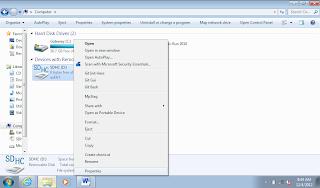
Right click on your SD card in My Computer, then click Format.
Change the settings so they look like this (except for the capacity field). Then click Start!
Right click on the icon for your newly formatted SD card and click on Properties.
Click on the ReadyBoost tab. Make sure the window looks like this (alternatively, scroll down to see your other options). Click Apply, and that's it!
 
In case you're wondering why I had you format your card as exFAT with a 32 MB cluster size, it's for speed. exFAT is Microsoft's proprietary filesystem specifically for flash drives, and when coupled with an enormous cluster size, much more speed can be wrung from your SD card. If you don't want to use the entire card for ReadyBoost, you can click 'Use this device' and use the slider to specify how much space you want to use. If you plan on using your card for more than ReadyBoost, it's a good idea to reduce the cluster size, so any other files you put on the card won't waste obscene amounts of space.
 
 
To get a good idea of how much of a performance boost you can expect from ReadyBoost, go here. Keep in mind that Windows 7 does a better job of boosting your netbook than Vista, which is what Anandtech used in their benchmarks. Also know that netbooks with SSD's (solid state drives) won't benefit at all from ReadyBoost, because SSD's are flash storage drives themselves, so adding more flash storage won't speed anything up. If you have a slow hard drive, though, ReadyBoost is the solution.
Tuesday, November 13, 2012

Netbook Chipset Comparison

Sure, info on processors and graphics is useful, but it doesn't tell the whole story of a netbook. It's worth taking a look at the feature sets of a netbook to ultimately help you decide which first netbook to buy, or whether an upgrade is worth your time and money.


Confused? Never fear, I'll explain this chart in its entirety.

Which chipset is which?
The best way to identify your chipset is to know which processor you have. Atom N2x0 processors use either Intel's 945GSE or Nvidia's MCP79MX chipset. The former utilizes Intel's GMA 950 graphics processor, while the latter comes with ION graphics. All Atom netbook processors succeeding the Diamondville series use the NM10 chipset. AMD's netbook processors use the A50M and A68M chipsets, with the former being used for first-generation Brazos netbooks.
PCI and PCIe Support
PCI and PCIe (stands for Peripheral Component Interface, the 'e' is 'Express') are standardized ports on nearly all mainstream computers, used for adding devices and functionality. For example, my netbook has a Wi-Fi adaptor and a multicard reader on the PCIe bus. The difference between PCI and PCIe is the age of the technology and their speed. PCI crawls at 132 MB/s, while PCIe zooms along at 8 GB/s on Nvidia's chipset. For the A50M and A68M chipsets, 4 x1 lanes are available from the chipset, and 1 x4 link is provided from the CPU, both at PCIe 2.0 speeds, which, for a x4 link, are 2 GB/s.
Ethernet Support
Ethernet is what allows you to connect to a wired network. Most chipsets have native support, but the NM10 does not. Native just means support is built-in, thus it's less expensive to implement in a netbook, as a third-party controller is unnecessary. The numbers in the table indicate the possible operating speeds of the Ethernet port, in megabits/second.
IDE and SATA
IDE and SATA are interfaces that connect drives, like hard drives or optical drives, to the main computer. IDE is much older and slower than SATA, as it is an older technology. IDE tops out at 133 MB/s, while SATA can go over 700 MB/s, with higher speeds on the way in the future. Notice the number of ports decreased in the move from the A50M to the A68M. This isn't a big deal for netbooks, because you can't cram more than 2 hard drives into a tiny netbook chassis.

USB Ports

Over the years, USB has undergone major overhauls since its official release in 1996. USB 1.1, the first widely accepted version of USB, released in 1998, can only transfer data at 1.4 MB/s. For some reason, the A50M chipset supports it, but I highly doubt you'll find a USB 1.1 port on a netbook. Next came USB 2.0, capable of speeds exceeding 57 MB/s, in theory. This is the most common USB version, since it's been around since 2000. Finally, the latest-and-greatest USB 3.0 can zoom by at nearly 600 MB/s. It's relatively new, with the official specification released in 2008. The only chipset natively supporting USB 3.0 is the A68M, so implementation of USB 3.0 is cheaper.

RAID Support

You likely don't need to worry about RAID, since it requires multiple hard drives. With RAID, you can configure your computer for high-speed data access or safety in the event of hard drive failure. You probably won't use it.
SD Card Support

As a special bonus to the A68M chipset, native SD card support is added to make Brazos 2.0 netbooks cheaper. Most netbooks have an SD card slot, and rely on a third party controller to make it work. Because no separate controller is needed, the manufacturer can build a Brazos 2.0 netbook at a lower cost, and pass those savings on to you.
Time to Upgrade?

Ultimately, the decision to upgrade is entirely up to you. I can only give advice on the matter. If you're running a first or second-gen Intel netbook with non-Nvidia graphics, I strongly suggest biting the bullet and picking up a current-gen AMD netbook. Yes, it will almost certainly be bigger than 10.1" and have less battery life, but its power in games is well worth the negative aspects. With Windows 8 available though, an 11.6" screen ain't such a bad idea, as 1024x600 isn't enough anymore. Keep in mind that the A68M uses 18% less power at idle than the A50M. Intel's graphics drivers for its Cedar Trail platform are in a sorry state right now, so I don't recommend one over whatever you already have.